
Problem
Regenerating the full image can change the actual product. Removing the background alone often loses realistic shadow and depth.
Background swap for product images
A product image can be almost perfect except for the scene around it. Image Layered gives you a layer-first workflow for changing the background while preserving the item that matters.
Change the background to a clean white studio with soft contact shadow.
Regenerating the full image can change the actual product. Removing the background alone often loses realistic shadow and depth.
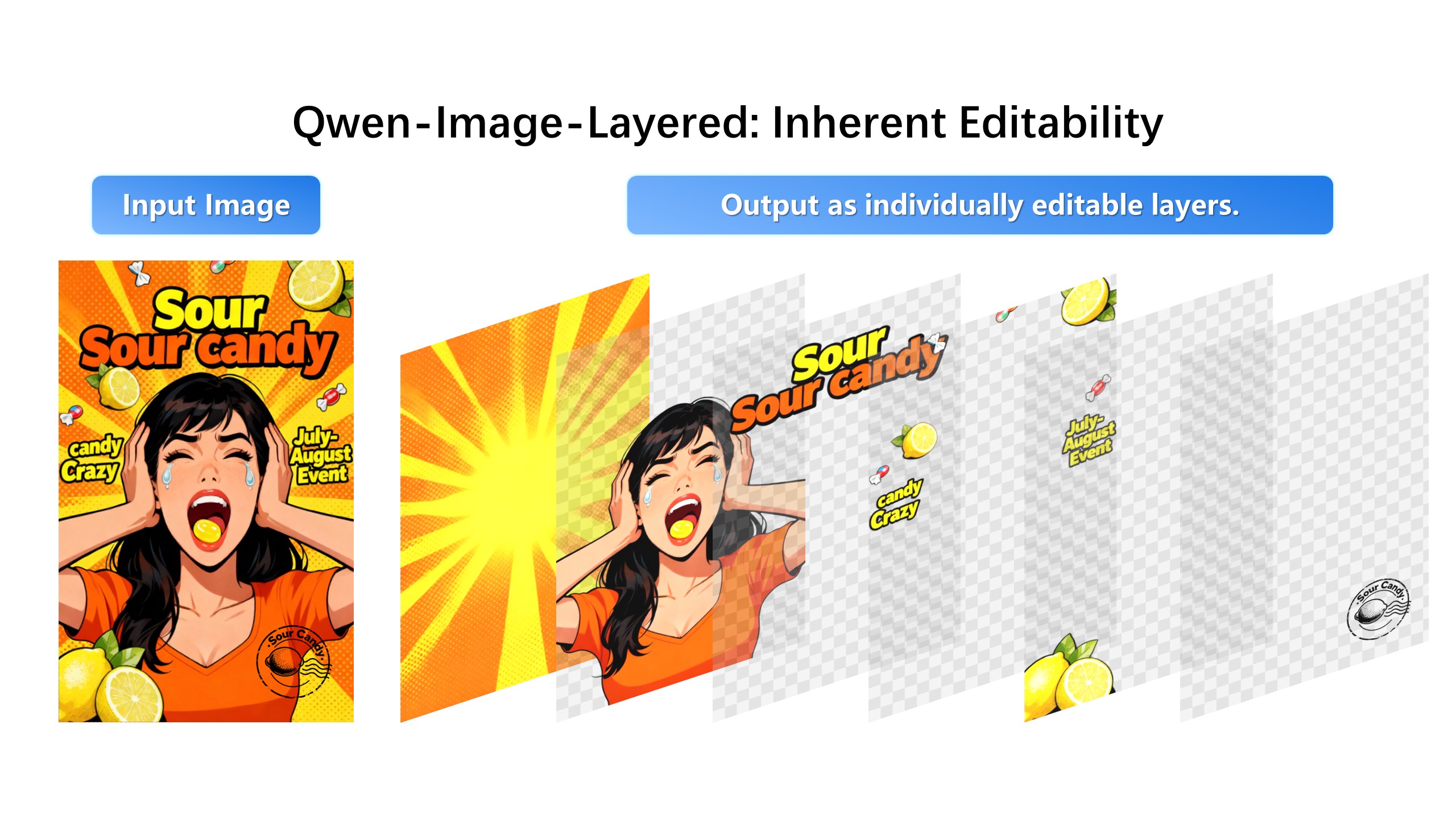
Split the image into product, shadow, background, and supporting elements. Then edit the background layer while recombining everything into one final image.
A product pasted onto a new background reads as fake because the old lighting and shadow travel with the cut-out. The swap looks right only when shadow, surface reflection, and lighting are separated from the product itself, so the new scene can carry its own.
Decompose into product, shadow, surface, and backdrop. Keep product and shadow visible while you replace the backdrop; regenerate the shadow only if the new scene changes the light direction. This ordering is why layered swaps survive zoom-in inspection on marketplaces.
The same layered master serves both directions: strip the lifestyle scene down to a soft studio white for listing compliance, then restore the premium scene for the brand site. Two exports, zero re-shoots, one protected product layer throughout.
1. Upload the product image.
2. Separate product, shadow, and background into independent layers.
3. Select the background layer.
4. Describe the new studio, lifestyle, or seasonal scene.
Yes. When shadow is separated into its own layer, you can preserve, edit, or recombine it with the new background.
Yes. The editor supports extracting and downloading individual layers for downstream design work.